
Introduction
The RSL Helper portable version is designed to carry its settings, configurations, and user data within its own folder structure. When these settings fail to save, it is almost always a file system issue; the application is denied the necessary rights to write data back to its own folder.
Understanding Portable Mode Limitations
Understanding Portable Mode Limitations is important. Unlike a standard installation that uses the protected system registry, portable mode relies entirely on the accessibility and permissions of its single directory on the host machine.
Why Folder Permissions Matter
Folder Permissions Matter is simple: RSL Helper must constantly read and write to its configuration files. If the operating system denies the write permission, any changes made are discarded when the application closes.
What Prevents Settings from Being Saved
These are the primary reasons RSL Helper cannot save changes in portable mode:
- Insufficient Folder Write Permissions: The user account running the application does not have the “Modify” or “Write” rights for the portable folder.
- Running From Restricted Locations: The portable folder is stored in protected locations such as the root of the C: drive, the Program Files directory, or certain cloud-synced folders.
- Conflicts With Security Software: Antivirus or security software (such as Windows Defender) may place a temporary or permanent lock on configuration files to prevent unauthorized modification.
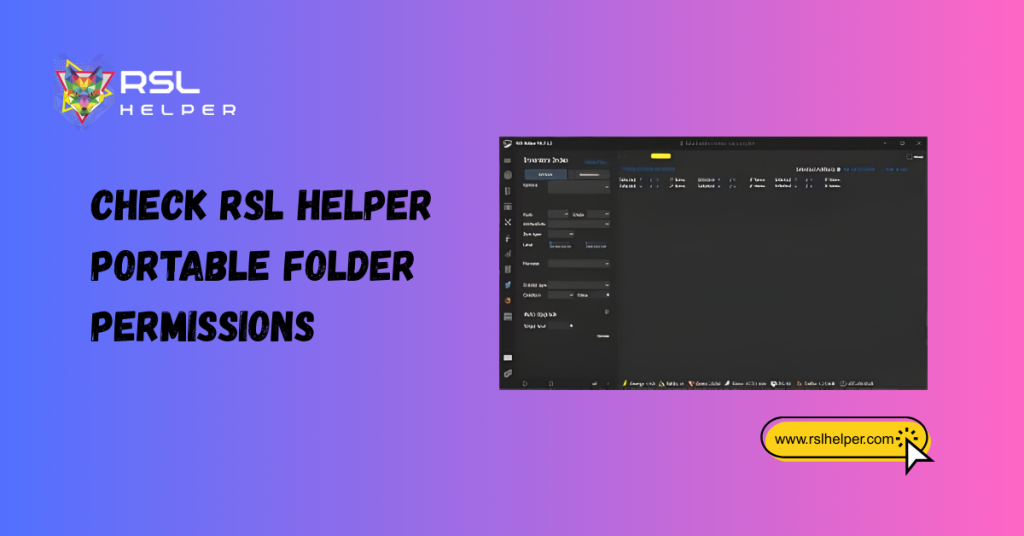
Check RSL Helper portable Folder Permissions
To confirm and fix the access rights issue, follow this three-step process:
- Identifying the Settings Folder
Locate the main folder containing the RSL Helper executable and its configuration files (typically .ini or .json).
- Granting Full Control Access
Right-click the folder, go to the Properties > Security tab, select your current user, click Edit, and check the Full Control box, then click Apply.
- Testing Permission Changes
Launch RSL Helper, change a minor setting (e.g., interface theme), close the tool, and relaunch to see if the change persisted.
Assuring Secure Storage Locations
Providing safe storage locations is a key step in troubleshooting loss of portable settings. The location where the portable folder is stored must allow the application full, unrestricted read/write access without requiring elevated privileges for every save operation.
Using User-Accessible Folders
Using user-accessible folders, such as your desktop, documents folder, or a dedicated directory on a non-system drive (like D:), is highly recommended. These locations are owned by your user account and typically allow full read/write access without interference from Windows’ User Account Control (UAC).
Avoiding Network Drives or Protected Paths
You must actively practice Avoid network drives or protected paths such as the Program Files directory, the root of the C: drive, or any cloud-synced folder that might lock files. These locations are strictly monitored by Windows security and will frequently deny the “Write” permission needed to save configurations.
Recommendations for Stable Portable Use
Recommendations for Stable Portable Use a focus on best practices to maintain integrity: Always store the portable folder locally in a user-accessible spot, ensure its entire path is excluded from real-time antivirus scans, and avoid moving the folder once the application has been configured.
Adjusting RSL Helper Settings Storage
If the issue is not permissions, it may be related to the configuration structure.
- Redirecting Config Files: Some portable applications allow you to specify an alternate location for configuration files. Check RSL Helper’s manual or internal settings for a configuration redirect option.
- Backing Up Settings for Safety: Locate your key settings files (.ini, etc.) and manually copy them to a separate folder before any major troubleshooting.
- Applying Changes Without Data Loss: Use the manual backup method to ensure you can restore configurations if a troubleshooting step requires deleting the current files.
Advanced Fixes for Ongoing Problems
If the settings still won’t save, a deeper clean is required.
Cleaning Temporary Files
Use Windows Disk Cleanup or a third-party tool to clear system-wide temporary files (%temp%) that may conflict with the portable folder’s file locks.
Recreating Config Files Safely
Delete the key configuration files (back them up first), then allow RSL Helper to generate fresh, default versions upon relaunch. This eliminates file corruption as the cause.
Resetting Portable Installation Without Losing Data
If the issue is complex, delete the entire portable folder (excluding your backed-up settings) and extract a fresh copy of the portable version into the same location. Then, restore your backed-up settings.
Best Practices for Portable Version Stability
- Frequently back up settings: Make it a habit, especially before updating RSL Helper or Windows.
- Avoid Moving the Folder During Use: Never move, copy, or rename the portable folder while RSL Helper is running, as this will cause immediate corruption of settings.
- Keeping Security Software Configured Properly: Ensure RSL Helper’s executable and its entire folder path are added to your antivirus and security software’s exclusion list.
FAQs
Why isn’t RSL Helper saving settings in portable mode?
RSL Helper usually doesn’t save settings in portable mode due to insufficient folder write permissions or because the folder is located in a restricted location, like Program Files.
How do I fix folder authorization errors?
To fix folder authorization errors, right-click the portable folder, select Properties > Security, and explicitly grant Full Control to your current user account.
Can security software prevent settings from saving?
Yes, security software can prevent settings from saving by locking configuration files, which can cause a Conflicts With Security Software error. Add RSL Helper to exclusions.
Which folders are safe for portable installs?
Folders safe for portable installs are typically user-owned directories, such as the Desktop, Documents, or a dedicated folder on a secondary drive (Using User-Accessible Folders).
How do I back up and restore portable settings?
To back up and restore portable settings, manually copy the .ini or configuration files from the portable folder to a safe location before troubleshooting, then copy them back after troubleshooting.
Can network drives cause settings loss?
Yes, network drives can cause settings to be lost due to unreliable latency and frequent file locking, making them inappropriate for stable portable use.
Is reinstalling the portable version necessary?
Reinstalling the portable version is usually not necessary until after you have tried cleaning temporary files and recreating config files safely via deletion.
How to prevent future settings problems in portable mode?
To prevent future settings problems in portable mode, always ensure that security software is configured properly and perform regular backups of settings.
Conclusion
The reliability of RSL Helper’s portable version is governed entirely by its relationship with the host Windows file system. The key to preventing settings loss lies in removing arbitrary access restrictions while guaranteeing the folder is stored in a clean, user-owned environment. Troubleshooting should always begin with verifying permissions before escalating to file deletion or reinstallation.
Achieving Smooth Portable Use is guaranteed when you combine Correct Permissions with Safe Storage (using user-accessible
folders), thereby bypassing common Windows restrictions that prevent the application from writing configuration data.
Latest Post:
- RSL Helper Stuck on Loading Screen: Fix with Cache Reset & Config Check
- RSL Helper Installation Failed—Common Causes Explained
- RSL Helper Apps Stuck During Installation—Causes and Solutions
- RSL Helper Shows Success but App Isn’t Visible – What’s Happening?
- RSL Helper Corrupted App Installations—How to Resolve










